Drop a folder.
Watch every video at once.
Play 4, 9, or 16 clips at once, or expand one into an immersive view. Pick keepers, rate, tag, and bulk-export, all on your Mac. No cloud, no accounts.
Three moves, then you're just browsing.
Drag any folder of clips in. VidViewer scans it and keeps watching, so new files show up on their own.
4, 9, or 16 at a time, aspect-fit with clean letterboxing, or expand one clip into an immersive view.
Page, shuffle, sort, filter, scrub. Hold ⌘ on any cell to scrub through it without leaving the grid.
More clips than patience? That's what this is for.
Two modes, one window. Watch to browse, Manage to act. Everything below happens locally, on your files.
Watch many at once.
The grid is the whole point. 4, 9, or 16 clips at a time, autofitting to whatever you drop in. Aspect-fit with clean letterboxing, or fill the cell. Mute everything or unmute just one, and nudge playback speed anywhere from 0.1× to 4×.
One clip, full attention.
Click expand and a single clip fills the window with an immersive frame. Jump next, previous, or random without collapsing back to the grid. Right-click for the same context menu you had in the grid.
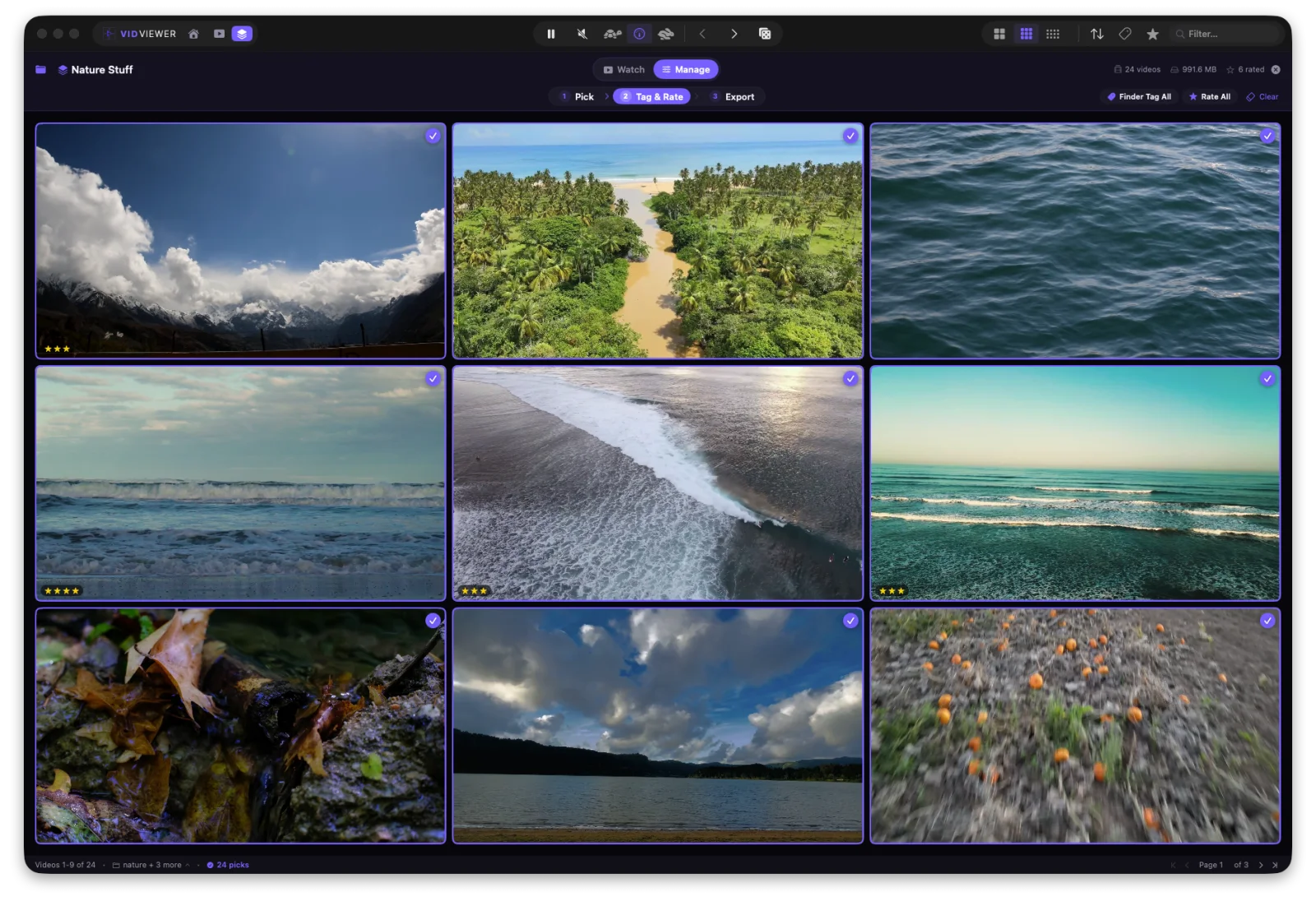
Pick, tag, and rate.
Press P to mark keepers. Rate 1–5 stars. Apply Finder color labels and custom tags, or let VidViewer auto-tag by media info: 4K, HEVC, 60fps, vertical. One click resets picks and ratings.
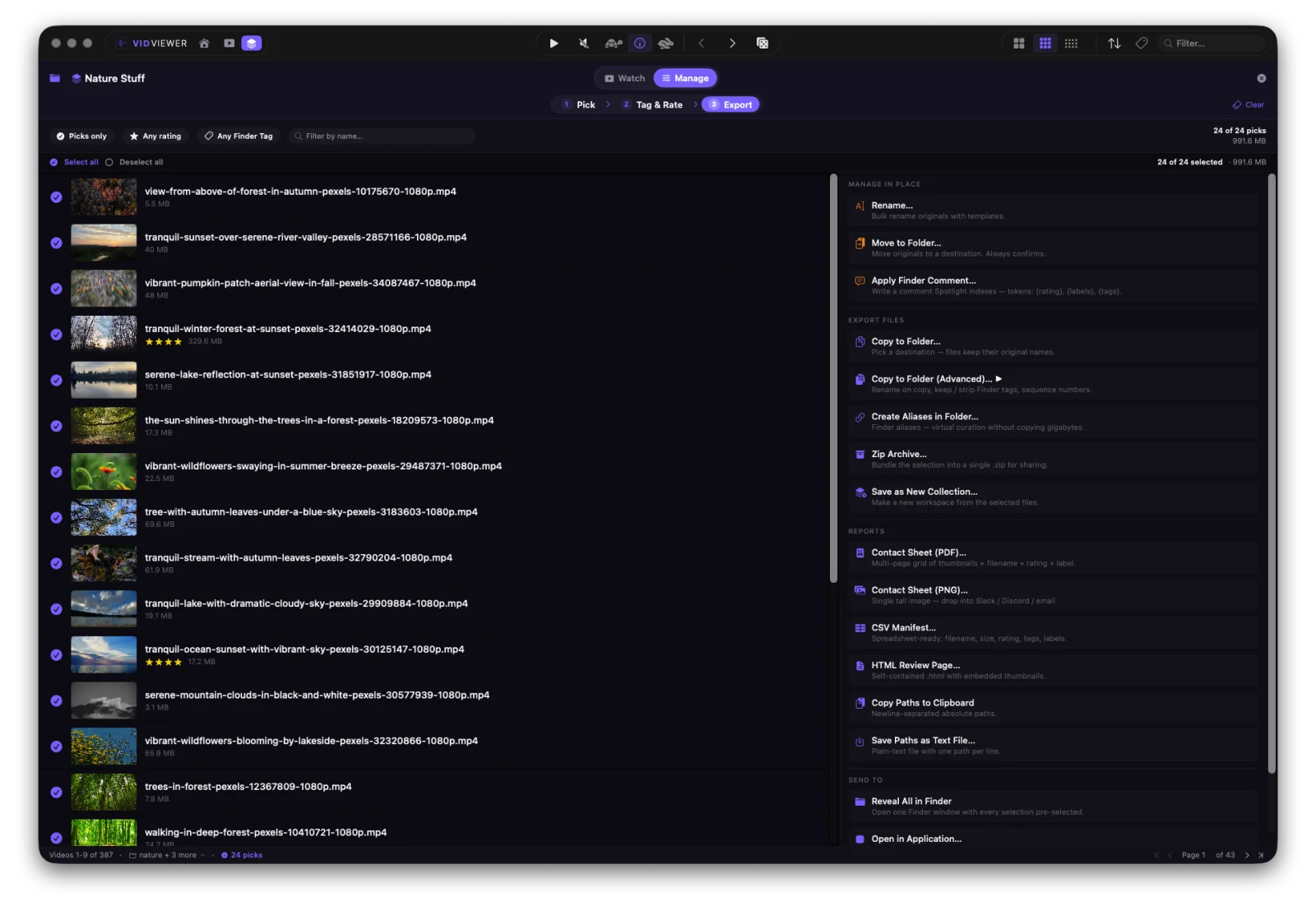
Export workspace.
Bulk copy, move, reveal in Finder, add to Photos, or create aliases. Rename in batch with template tokens and counters. Generate contact sheets (PDF or PNG), CSV manifests, and HTML review pages, zip an archive, or promote your picks into a new Collection.
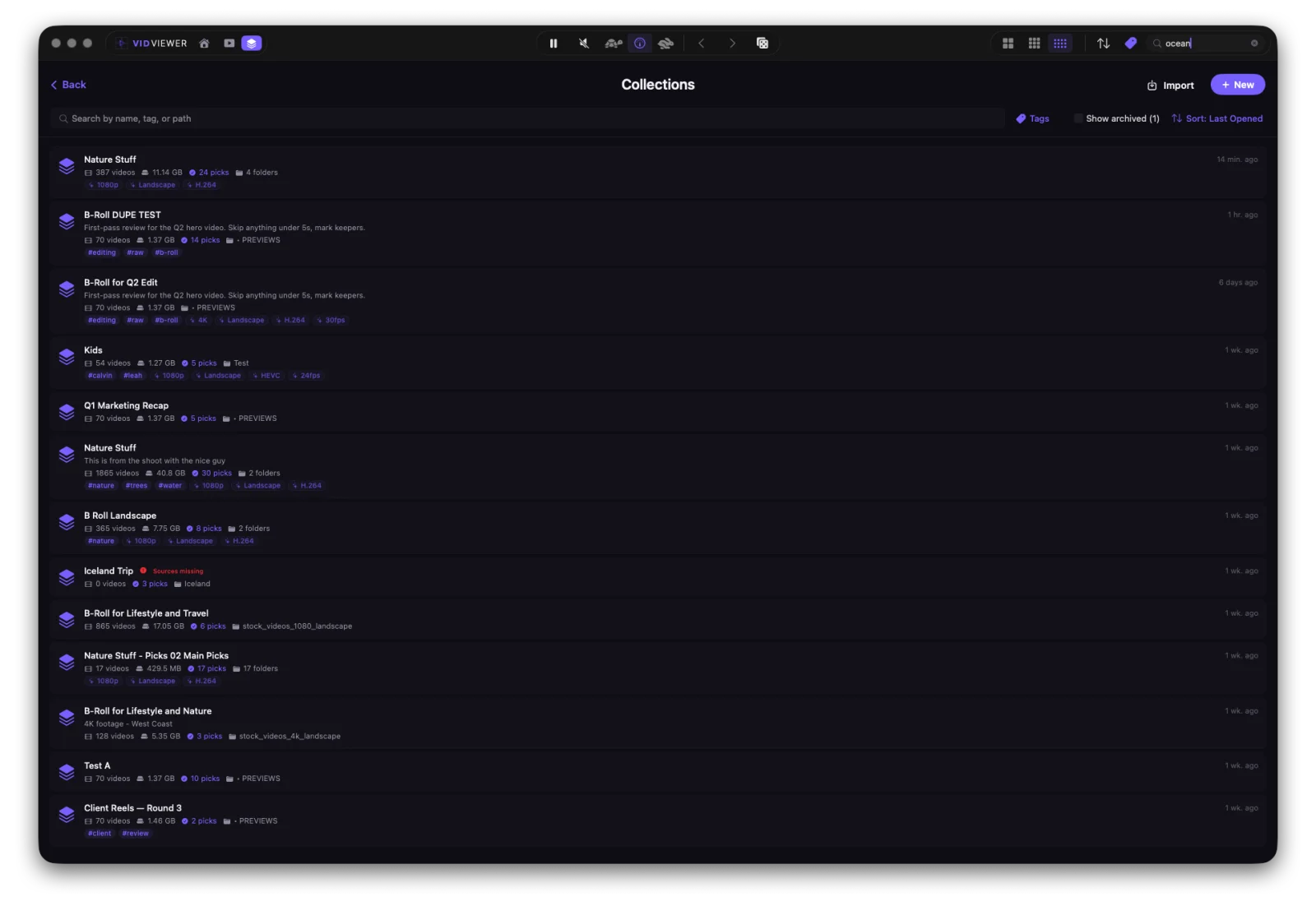
Every workspace, remembered.
Save any setup as a Collection: source folders, picks, ratings, tags, grid size, sort, and view preferences. Pin favorites, search, and jump between them. Open one and you're exactly where you left off.
Find anything fast.
Sort by name, date, size, tag, or folder. Filter as you type. Search covers names, tags, paths, and notes. Filter by Finder tag color with one click, and hold ⌘ on any cell to scrub through it.
Press play. Walk away.
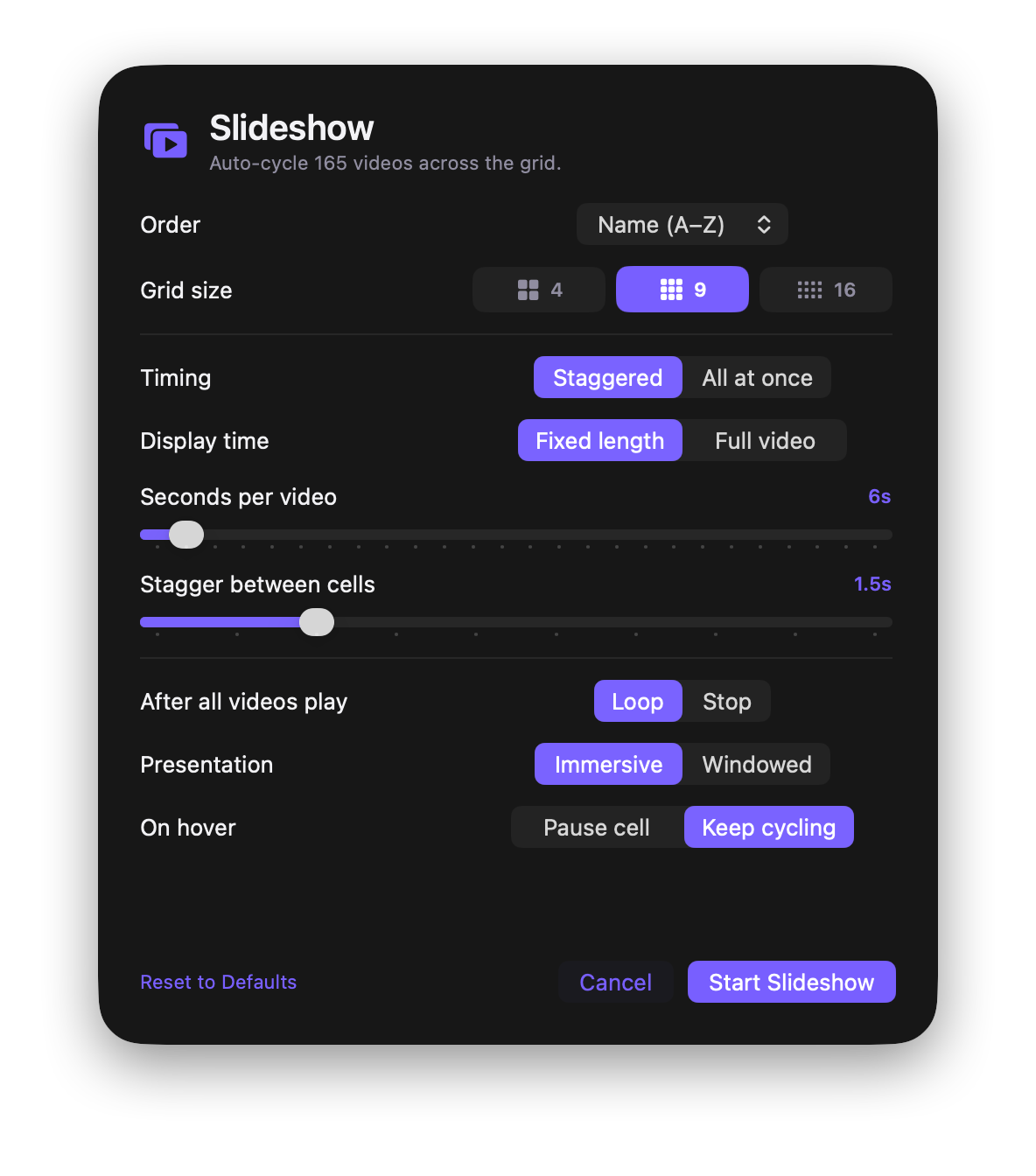
Slideshow turns your grid into a hands-off, auto-cycling player. Set how it orders, times, and displays, then let it run.
- Order it by shuffle, name, or date, at 4, 9, or 16 up.
- Advance staggered cell by cell or all at once, holding each clip a fixed few seconds or playing it in full.
- Loop forever, or stop once everything has been shown.
- Take over the screen immersively, or keep it windowed. Hover to pause a cell or keep it cycling.
Constantly refined: snappier 4K loading, folders that always open fresh, and a smarter Random that spreads clips out so lookalikes don't land side by side.
Everything you might ask.
What video formats are supported?
MP4, MOV, and M4V. Anything AVKit plays natively. MKV and WebM aren't supported; convert them to MP4 first (HandBrake or ffmpeg both do it in one pass). Files VidViewer can't play are flagged, and never crash the app.
How many videos can I watch at once?
4, 9, or 16 in a responsive grid you can resize, or expand any cell into an immersive single-clip view. The grid autofits to whatever you drop in: 3 clips give you a 2×2, 12 give you a 4×4, one opens straight into the expanded view.
What are Collections?
A Collection is a saved workspace. It remembers your source folders, picks, ratings, color tags, custom labels, grid size, sort order, and view preferences. Open one and everything is exactly where you left it.
What are Watch and Manage?
Two modes, one window. Watch is for browsing. Just the videos, full attention. Manage steps you through Tag & Rate (picks, stars, color tags, labels) and Export (rename, copy, reports, contact sheets). Toggle between them anytime.
What is Slideshow mode?
Slideshow auto-cycles your grid so you can watch hands-free. Pick the order (shuffle, name, or date), the grid size, and how it advances: on a timer that cascades cell by cell or changes them all at once, or by letting each clip play to the end. Loop it, or stop once everything has been shown. Run it in a window, or as a full-screen immersive takeover. Press Stop or Esc to drop back to your grid.
What are Picks?
Picks are videos you mark as keepers. Press P on any cell. Filter to picks-only when you want to focus on the shortlist, then act on them from the Export workspace. Bulk copy, rename, tag, or generate a report.
Can VidViewer edit videos?
No. VidViewer is a viewer and curation tool. It doesn't trim, cut, transcode, or encode. The goal is to help you sort and act on a folder of clips, not to replace an editor.
Does VidViewer modify my files?
Only when you explicitly ask. Rename, copy, move, Finder tag, and Finder comment operations are all confirmed actions in the Export workspace. Playback never touches your files.
Does it upload anything?
No. VidViewer runs entirely on your Mac. No telemetry, no analytics, no network calls, no cloud, no accounts. See the privacy page for the full list.
Where is my data stored?
Collections are JSON files in ~/Library/Application Support/VidViewer/Collections/. Automatic backups live next to them in a sibling Backups/ folder. Settings live in standard macOS UserDefaults and are included in every backup.
What macOS version do I need?
macOS 13 (Ventura) or later. Apple Silicon only. M1 or newer.
Will it handle a huge collection?
Yes. Scanning is asynchronous and handles thousands of files without freezing the UI. Source folders are watched continuously, so new files appear in the grid as they land. No rescan needed.
What if I unplug an external drive?
VidViewer detects missing source folders and shows an amber warning. Plug the drive back in and the collection reconnects automatically. Individual missing files get a banner with options to wait, remove from picks, or skip.
How do I get it?
VidViewer is on the Mac App Store as a one-time $4.99 purchase. There is no subscription and no in-app purchase.
Can I customize the appearance?
VidViewer is intentionally dark-only. You can set the default grid size, sort order, hover behavior, skip duration, and other workflow preferences in Settings. The look stays consistent with your content.